# TO BE DELETED - Syncing Circle Calendars (For Lamplighters only...)
Learn to sync all Hypha calendars to your personal calendar.
Google Calendar is NO LONGER being used because of sync issues.
We host our own shared calendar on self-hosting service Cloudron that sits on Digital Ocean (PaaS)
# 01.Hypha Anchor Circle (HANC)
**FOR LAMPLIGHTERS**
**TO MODIFY ZOOM CALLS & UPDATE THE (NEW) SHARED CALENDAR**
**Note:**
- The only **google calendar** to be connected to is **calendar@hypha.earth.**
- No simultaneous or overlap of meetings allowed with same Zoom account.
- If using breakout rooms, ensure someone is signed in using Zoom circle account so that they can assign people to breakout rooms.
- Make sure to check your **locker.hypha.earth for your login/password/2FA**
> **Important**
>
> - Full Name: ****
> - username: **anchorcircle-hypha.earth**
> - email: ****
> - email alias: ****
> - [**https://zoom.us/my/hyphaanchorcircle (HANC)**](https://zoom.us/my/hyphamovementbuildingcircle)
>
> ---
>
> **ZOOM**
>
> 1. HANC - [https://zoom.us/my/hyphaanchorcircle](https://zoom.us/my/hyphaanchorcircle "https://zoom.us/my/hyphaanchorcircle")
> 2. HPLC - [https://zoom.us/my/hyphapeoplecircle](https://zoom.us/my/hyphapeoplecircle "https://zoom.us/my/hyphapeoplecircle")
> 3. HPTC - [https://zoom.us/my/hyphaproductscircle](https://zoom.us/my/hyphaproducts)
> 4. HMBC - [https://zoom.us/my/hyphamovementbuildingcircle](https://zoom.us/my/hyphamovementbuildingcircle)
> 5. HFFC - [https://zoom.us/my/hyphafinancialflowcircle](https://zoom.us/my/hyphafinancialflowcircle)
> 6. HCDC - [https://zoom.us/my/hyphacommunicationdesigncircle](https://zoom.us/my/hyphafinancialflowcircle)
> 7. SEEDS Samara DHO - [https://zoom.us/my/seedssamara](https://zoom.us/my/seedssamara)
**STEP 1**
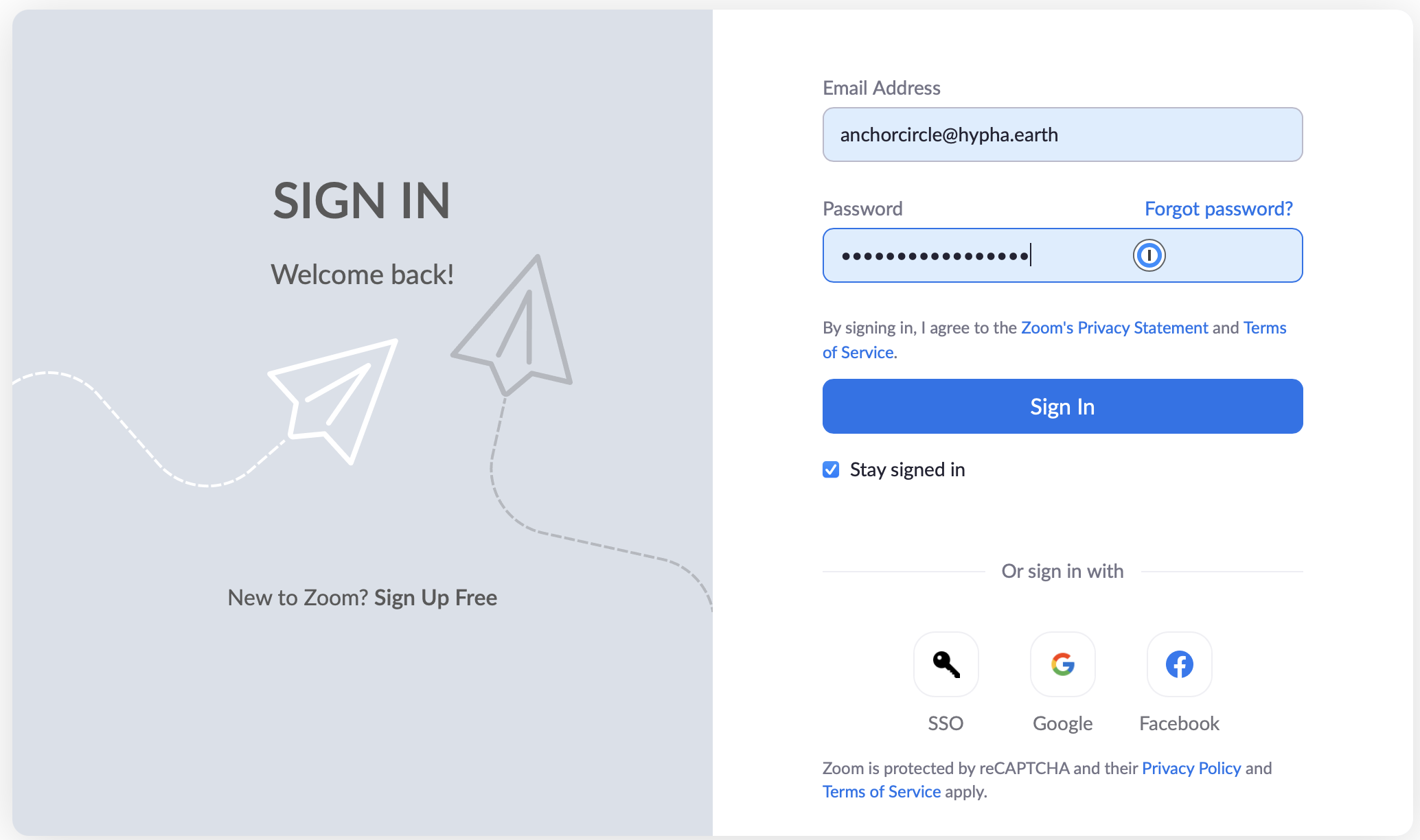
1. **Log into [https://zoom.us](https://zoom.us) using **
2. Both the **Password** and **2-Factor Auth** are found within **[https://locker.hypha.earth](https://locker.hypha.earth "https://locker.hypha.earth") \[ Contact: if necessary for password and 2FA \]**
[](https://guide.hypha.earth/uploads/images/gallery/2021-04/image-1619472622706-26-49.png)
**STEP 2**
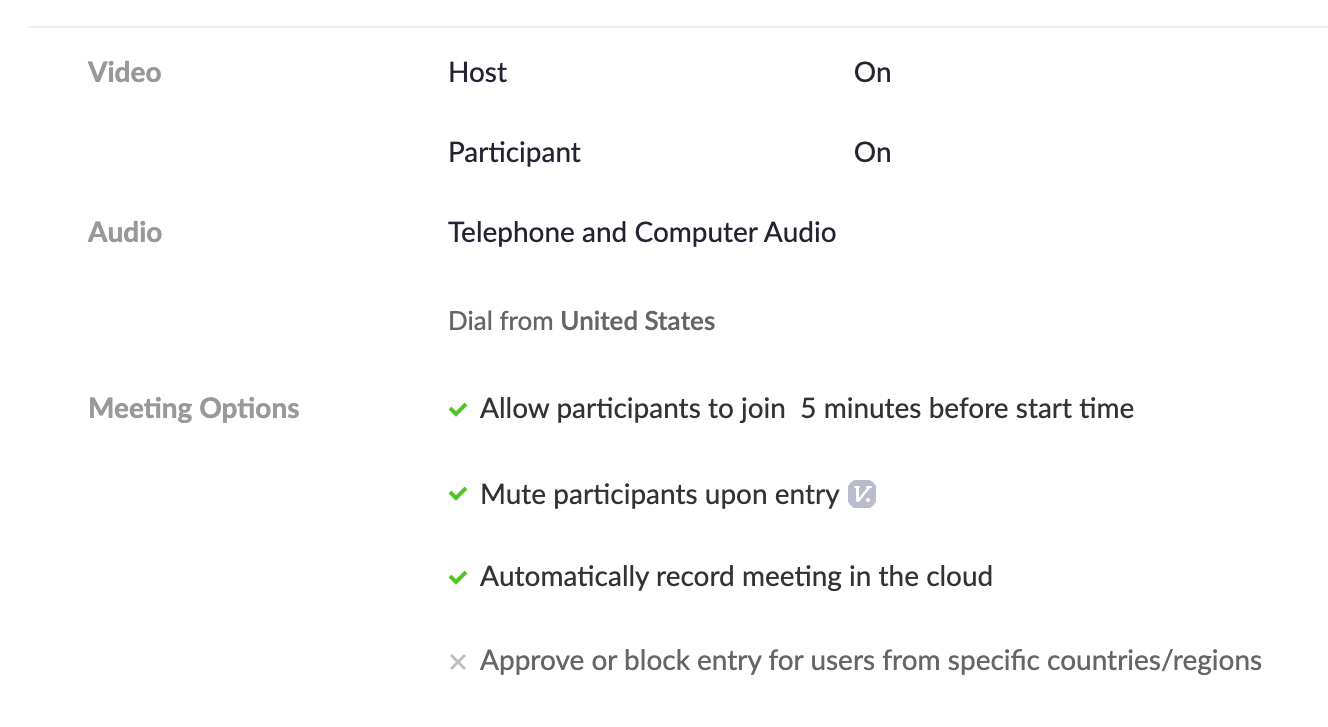
1. **Add/modify/delete** your Zoom meeting invite.
2. Ensure you have ongoing invite if it is regularly occurring.
3. Make sure you select the option for repeat.
[](https://guide.hypha.earth/uploads/images/gallery/2021-05/screen-shot-2021-05-04-at-12-50-46-pm.png)
**STEP 3**
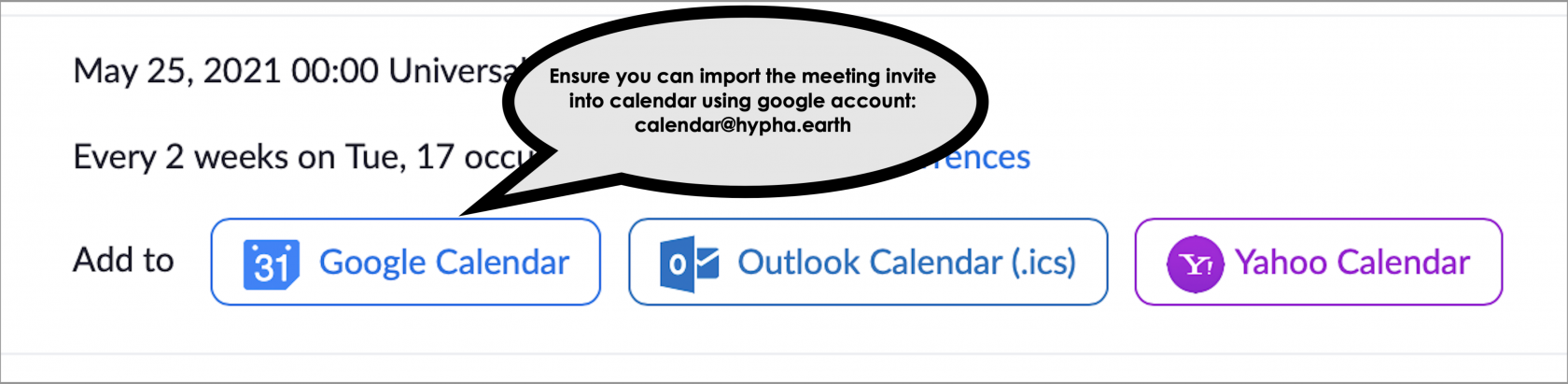
1. Make sure you download and connect the zoom meeting to google calendar . Note: this calendar requires 2FA.
2. Make sure to check your **locker.hypha.earth for your login/password/2FA**
[](https://guide.hypha.earth/uploads/images/gallery/2021-05/image-1621880413413-20-08.png)
**STEP 4**
1. Make sure you are logged into on your browser (locker.hypha.earth for login details)
2. Make sure you select the correct calendar for your circle
3. For this circle it is **HANC (Hypha Anchor Circle)**[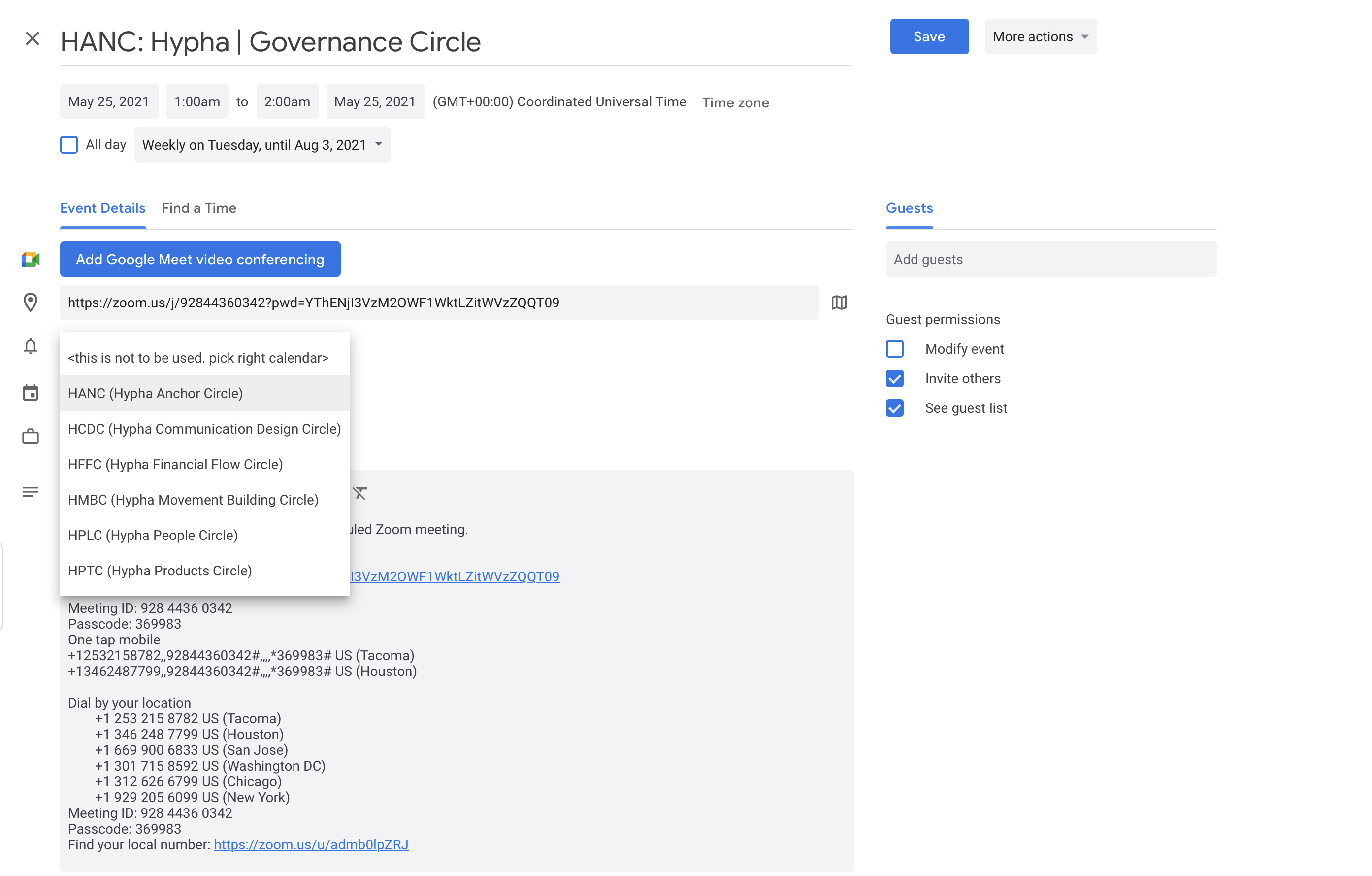](https://guide.hypha.earth/uploads/images/gallery/2021-05/image-1621887649660-18-37.png)
4. Click on **Save**
5. The **[https://ourcalendar.hypha.earth/hypha-anchor-circle-calendar/](https://ourcalendar.hypha.earth/hypha-anchor-circle-calendar/ "https://ourcalendar.hypha.earth/hypha-anchor-circle-calendar/")** will be updated with latest calendar information.
6. The Uber calendar [https://**ourcalendar.hypha.earth**](https://ourcalendar.hypha.earth "https://ourcalendar.hypha.earth") will also be updated with latest calendar information.
# 02.Hypha People Circle (HPLC)
**FOR LAMPLIGHTERS**
**TO MODIFY ZOOM CALLS & UPDATE THE (NEW) SHARED CALENDAR**
**Note:**
- The only **google calendar** to be connected to is **calendar@hypha.earth.**
- No simultaneous or overlap of meetings allowed with same Zoom account.
- If using breakout rooms, ensure someone is signed in using Zoom circle account so that they can assign people to breakout rooms.
- Make sure to check your **locker.hypha.earth for your login/password/2FA**
> **Important**
>
> - Full Name: ****
> - username: **peoplecircle-hypha.earth**
> - email: ****
> - email alias: [**hplc@hypha.earth**](mailto:hplc@hypha.earth)
> - HPLC - [**https://zoom.us/my/hyphapeoplecircle**](https://zoom.us/my/hyphapeoplecircle "https://zoom.us/my/hyphapeoplecircle")
>
> ---
>
> **ZOOM**
>
> 1. HANC - [https://zoom.us/my/hyphaanchorcircle](https://zoom.us/my/hyphaanchorcircle "https://zoom.us/my/hyphaanchorcircle")
> 2. HPLC - [https://zoom.us/my/hyphapeoplecircle](https://zoom.us/my/hyphapeoplecircle "https://zoom.us/my/hyphapeoplecircle")
> 3. HPTC - [https://zoom.us/my/hyphaproductscircle](https://zoom.us/my/hyphaproducts)
> 4. HMBC - [https://zoom.us/my/hyphamovementbuildingcircle](https://zoom.us/my/hyphamovementbuildingcircle)
> 5. HFFC - [https://zoom.us/my/hyphafinancialflowcircle](https://zoom.us/my/hyphafinancialflowcircle)
> 6. HCDC - [https://zoom.us/my/hyphacommunicationdesigncircle](https://zoom.us/my/hyphafinancialflowcircle)
> 7. SEEDS Samara DHO - [https://zoom.us/my/seedssamara](https://zoom.us/my/seedssamara)
**STEP 1**
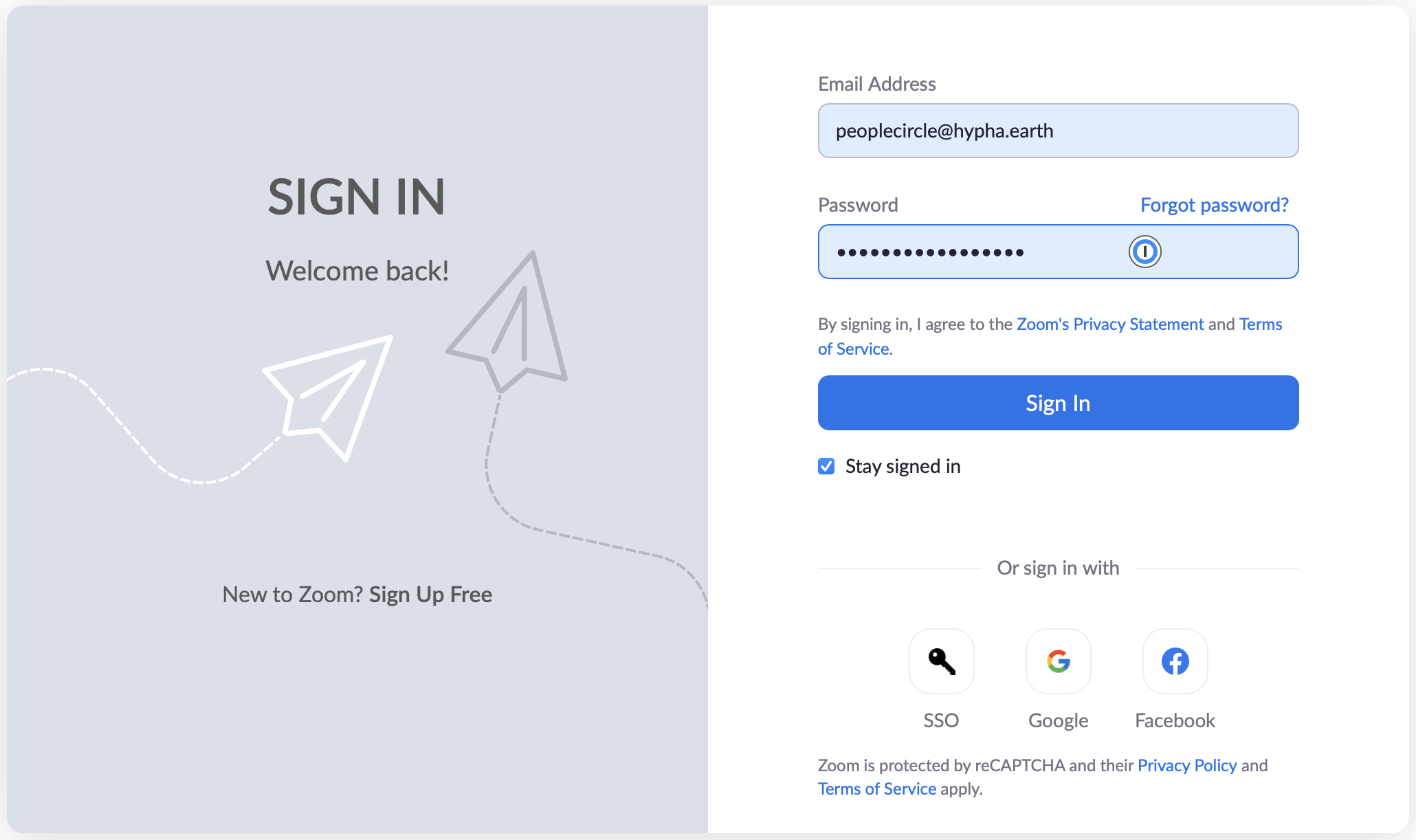
1. **Log into [https://zoom.us](https://zoom.us) using peoplecircle@hypha.earth**
2. Password and 2FA are within your [https://Locker.hypha.earth](https://Locker.hypha.earth)
3. **Contact: if necessary for password and 2FA**
[](https://guide.hypha.earth/uploads/images/gallery/2021-04/image-1619472622554-28-27.png)
**STEP 2**
1. Add/modify/delete your zoom invites.
2. Ensure you have ongoing invite if it is regularly occurring.
3. Make sure you select the option for repeat.
**STEP 3**
1. Make sure you download and connect the zoom meeting to google calendar . Note: this calendar requires 2FA.
2. Make sure to check your **locker.hypha.earth for your login/password/2FA**
[](https://guide.hypha.earth/uploads/images/gallery/2021-05/image-1621880413413-20-08.png)
**STEP 4**
1. Make sure you are logged into on your browser (locker.hypha.earth for login details)
2. Make sure you select the correct calendar for your circle
3. For this circle it is **HPLC (Hypha People Circle)**[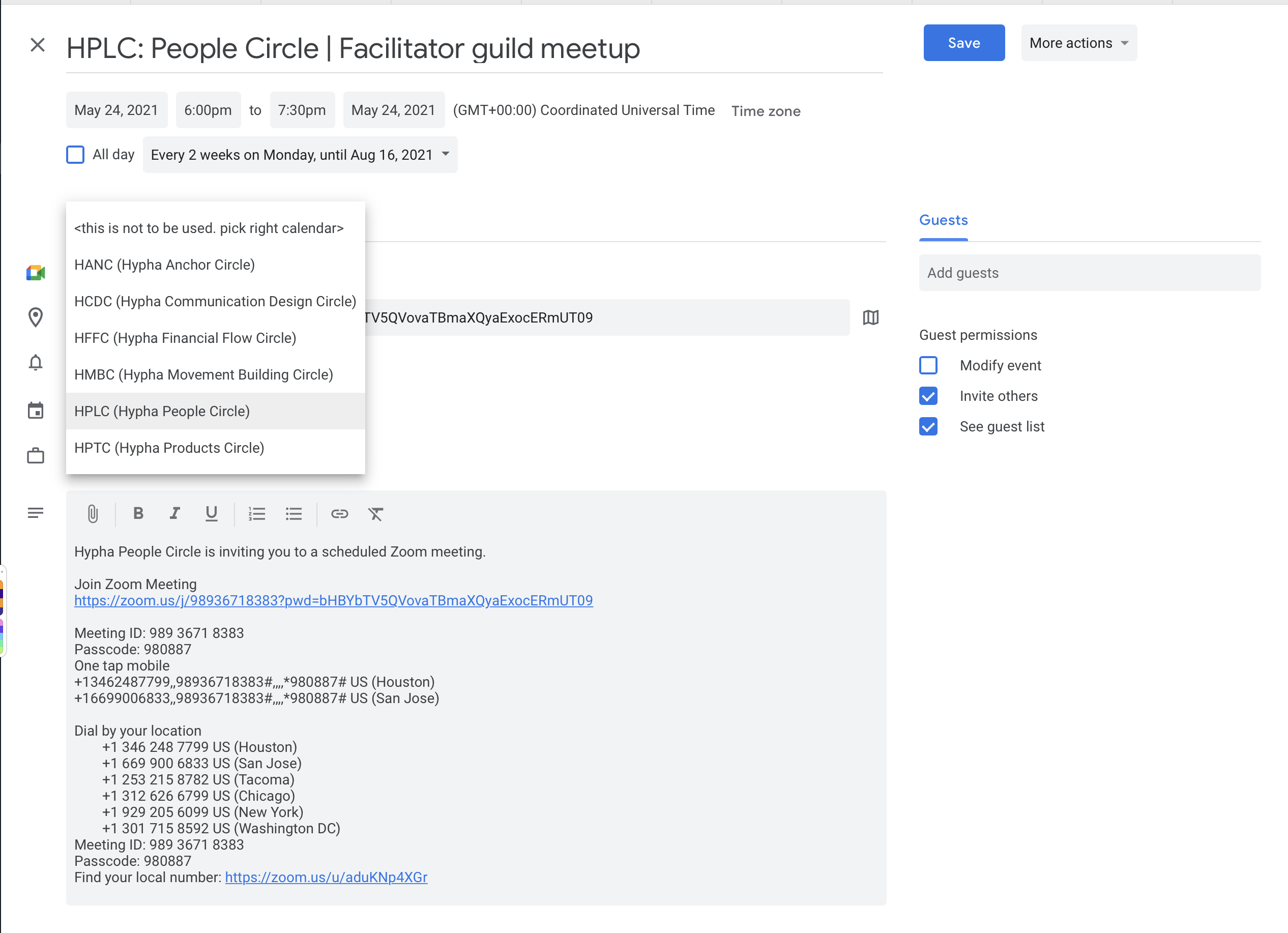](https://guide.hypha.earth/uploads/images/gallery/2021-05/image-1621887892728-18-57.png)
4. Click on **Save**
5. The **[https://ourcalendar.hypha.earth/hypha-people-circle-calendar/](https://ourcalendar.hypha.earth/hypha-people-circle-calendar/ "https://ourcalendar.hypha.earth/hypha-people-circle-calendar/")** will be updated with latest calendar information.
6. The Uber calendar [**https://ourcalendar.hypha.earth**](https://ourcalendar.hypha.earth "https://ourcalendar.hypha.earth") will also be updated with latest calendar information.
# 03.Hypha Products Circle (HPTC)
**FOR LAMPLIGHTERS**
**TO MODIFY ZOOM CALLS & UPDATE THE (NEW) SHARED CALENDAR**
**Note:**
- The only **google calendar** to be connected to is **calendar@hypha.earth.**
- No simultaneous or overlap of meetings allowed with same Zoom account.
- If using breakout rooms, ensure someone is signed in using Zoom circle account so that they can assign people to breakout rooms.
> **Important**
>
> - Full Name: ****
> - username: **productscircle-hypha.earth**
> - email: ****
> - email alias: [**hptc@hypha.earth**](mailto:hptc@hypha.earth)
> - HPTC - [**https://zoom.us/my/hyphaproductscircle**](https://zoom.us/my/hyphaproducts)
>
> ---
>
> **ZOOM**
>
> 1. HANC - [https://zoom.us/my/hyphaanchorcircle](https://zoom.us/my/hyphaanchorcircle "https://zoom.us/my/hyphaanchorcircle")
> 2. HPLC - [https://zoom.us/my/hyphapeoplecircle](https://zoom.us/my/hyphapeoplecircle "https://zoom.us/my/hyphapeoplecircle")
> 3. HPTC - [https://zoom.us/my/hyphaproductscircle](https://zoom.us/my/hyphaproducts)
> 4. HMBC - [https://zoom.us/my/hyphamovementbuildingcircle](https://zoom.us/my/hyphamovementbuildingcircle)
> 5. HFFC - [https://zoom.us/my/hyphafinancialflowcircle](https://zoom.us/my/hyphafinancialflowcircle)
> 6. HCDC - [https://zoom.us/my/hyphacommunicationdesigncircle](https://zoom.us/my/hyphafinancialflowcircle)
> 7. SEEDS Samara DHO - [https://zoom.us/my/seedssamara](https://zoom.us/my/seedssamara)
**STEP 1:**
1. **Log into [https://zoom.us](https://zoom.us) using **
2. Password and 2FA are within your **[https://Locker.hypha.earth](https://Locker.hypha.earth)**
3. **Contact: if necessary for password and 2FA**[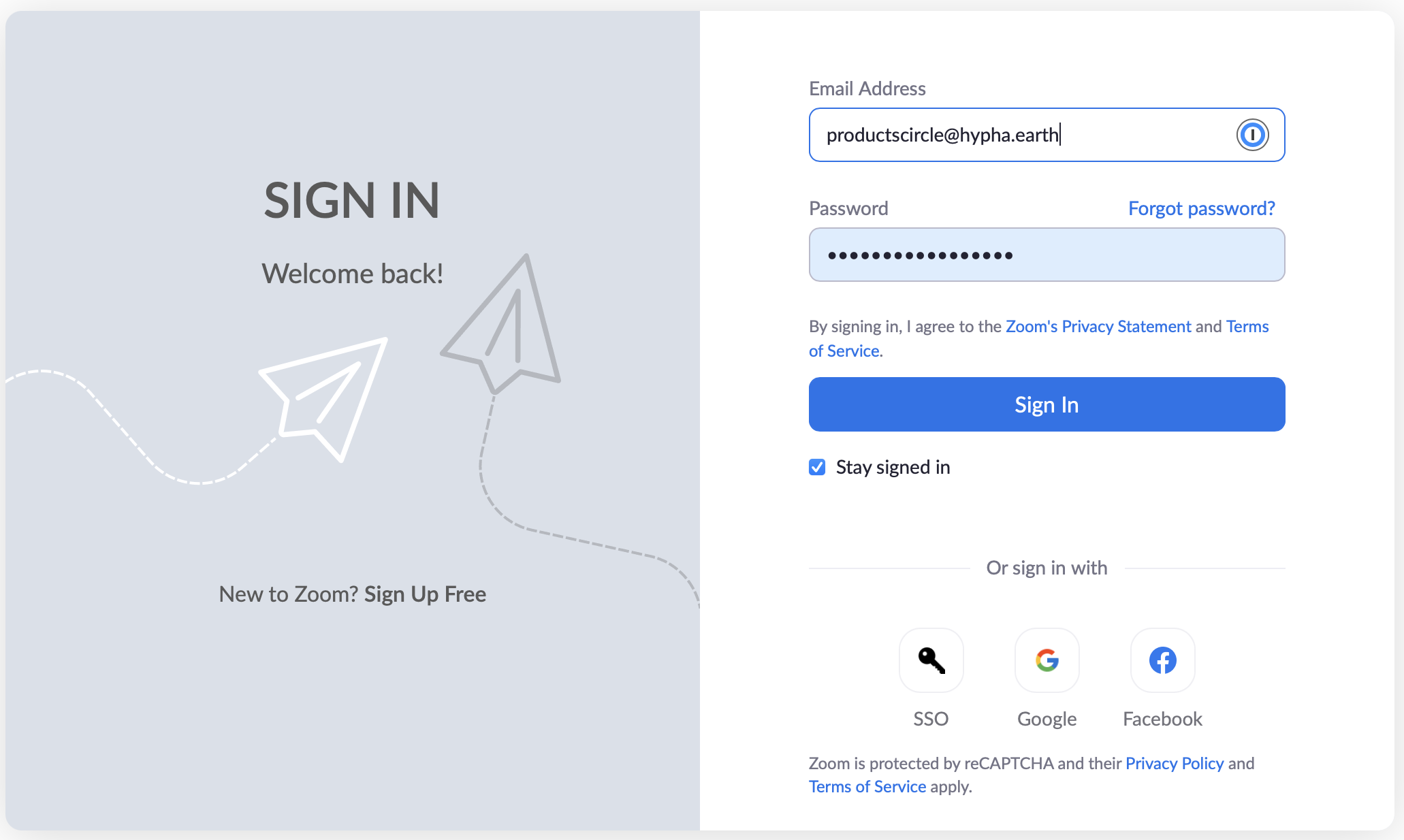](https://guide.hypha.earth/uploads/images/gallery/2021-04/image-1619474117035-29-07.png)
**STEP 2**
1. Add/modify/delete your zoom invites.
2. Ensure you have ongoing invite if it is regularly occurring.
3. Make sure you select the option for repeat.
**STEP 3**
1. Make sure you download and connect the zoom meeting to google calendar . Note: this calendar requires 2FA.
[](https://guide.hypha.earth/uploads/images/gallery/2021-05/image-1621880413413-20-08.png)
**STEP 4**
1. Make sure you are logged into on your browser (locker.hypha.earth for login details)
2. Make sure you select the correct calendar for your circle
3. For this circle it is **HPTC (Hypha Products Circle)**[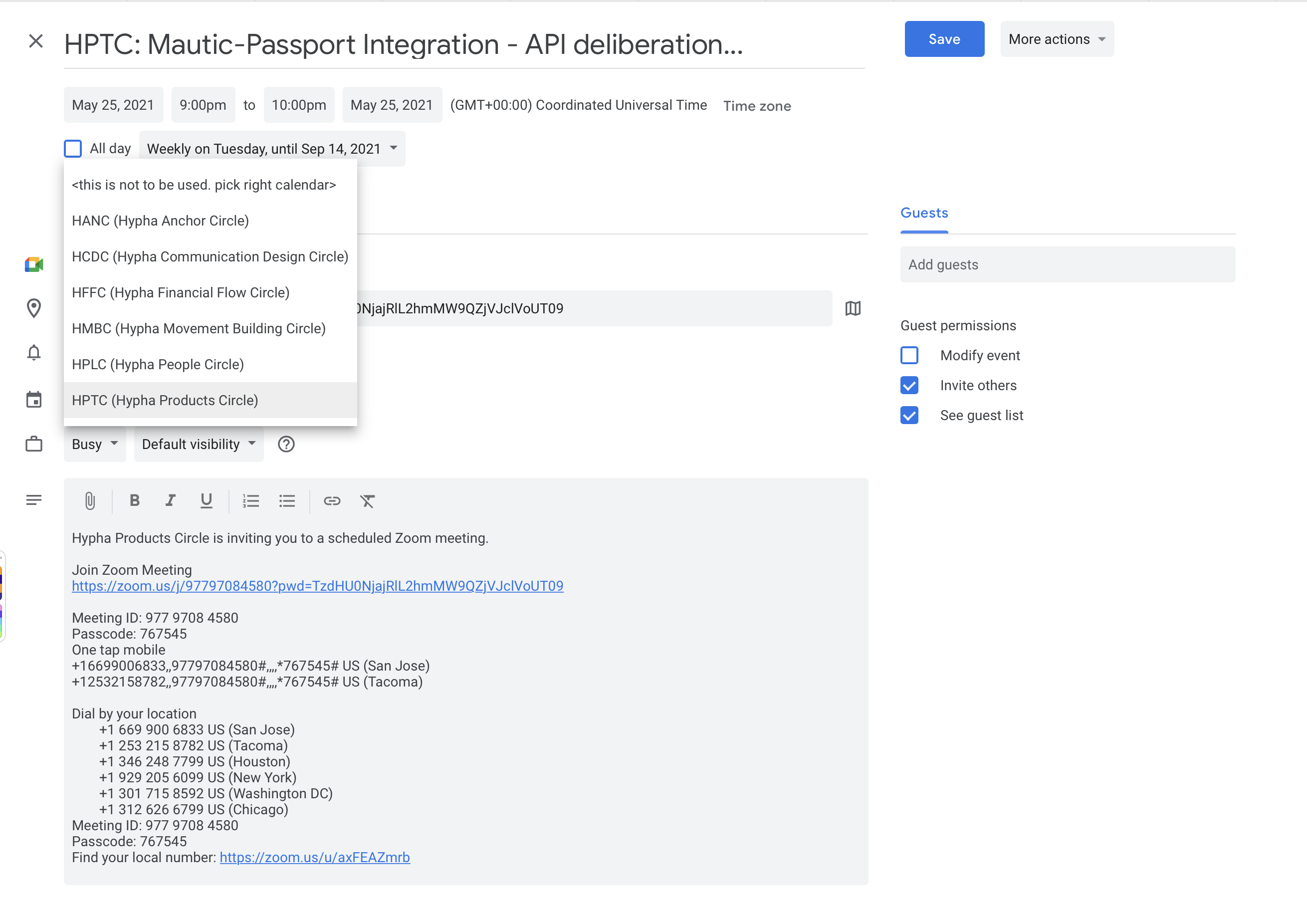](https://guide.hypha.earth/uploads/images/gallery/2021-05/image-1621888055960-19-18.png)
4. Click on **Save**
5. The **[https://ourcalendar.hypha.earth/hypha-products-circle-calendar/](https://ourcalendar.hypha.earth/hypha-products-circle-calendar/ "https://ourcalendar.hypha.earth/hypha-products-circle-calendar/")** will be updated with latest calendar information.
6. The Uber calendar [**https://ourcalendar.hypha.earth**](https://ourcalendar.hypha.earth "https://ourcalendar.hypha.earth") will also be updated with latest calendar information.
# 04.Hypha Movement Building Circle (HMBC)
**FOR LAMPLIGHTERS**
**TO MODIFY ZOOM CALLS & UPDATE THE (NEW) SHARED CALENDAR**
**Note:**
- The only **google calendar** to be connected to is **calendar@hypha.earth.**
- No simultaneous or overlap of meetings allowed with same Zoom account.
- If using breakout rooms, ensure someone is signed in using Zoom circle account so that they can assign people to breakout rooms.
- Make sure to check your **locker.hypha.earth for your login/password/2FA**
> **Important**
>
> - Full Name: ****
> - username: **movementbuildingcircle-hypha.earth**
> - email: ****
> - email alias: [**hmbc@hypha.earth**](mailto:hmbc@hypha.earth)
> - HMBC - [**https://zoom.us/my/hyphamovementbuildingcircle**](https://zoom.us/my/hyphamovementbuildingcircle)
>
> ---
>
> **ZOOM**
>
> 1. HANC - [https://zoom.us/my/hyphaanchorcircle](https://zoom.us/my/hyphaanchorcircle "https://zoom.us/my/hyphaanchorcircle")
> 2. HPLC - [https://zoom.us/my/hyphapeoplecircle](https://zoom.us/my/hyphapeoplecircle "https://zoom.us/my/hyphapeoplecircle")
> 3. HPTC - [https://zoom.us/my/hyphaproductscircle](https://zoom.us/my/hyphaproducts)
> 4. HMBC - [https://zoom.us/my/hyphamovementbuildingcircle](https://zoom.us/my/hyphamovementbuildingcircle)
> 5. HFFC - [https://zoom.us/my/hyphafinancialflowcircle](https://zoom.us/my/hyphafinancialflowcircle)
> 6. HCDC - [https://zoom.us/my/hyphacommunicationdesigncircle](https://zoom.us/my/hyphafinancialflowcircle)
> 7. SEEDS Samara DHO - [https://zoom.us/my/seedssamara](https://zoom.us/my/seedssamara)
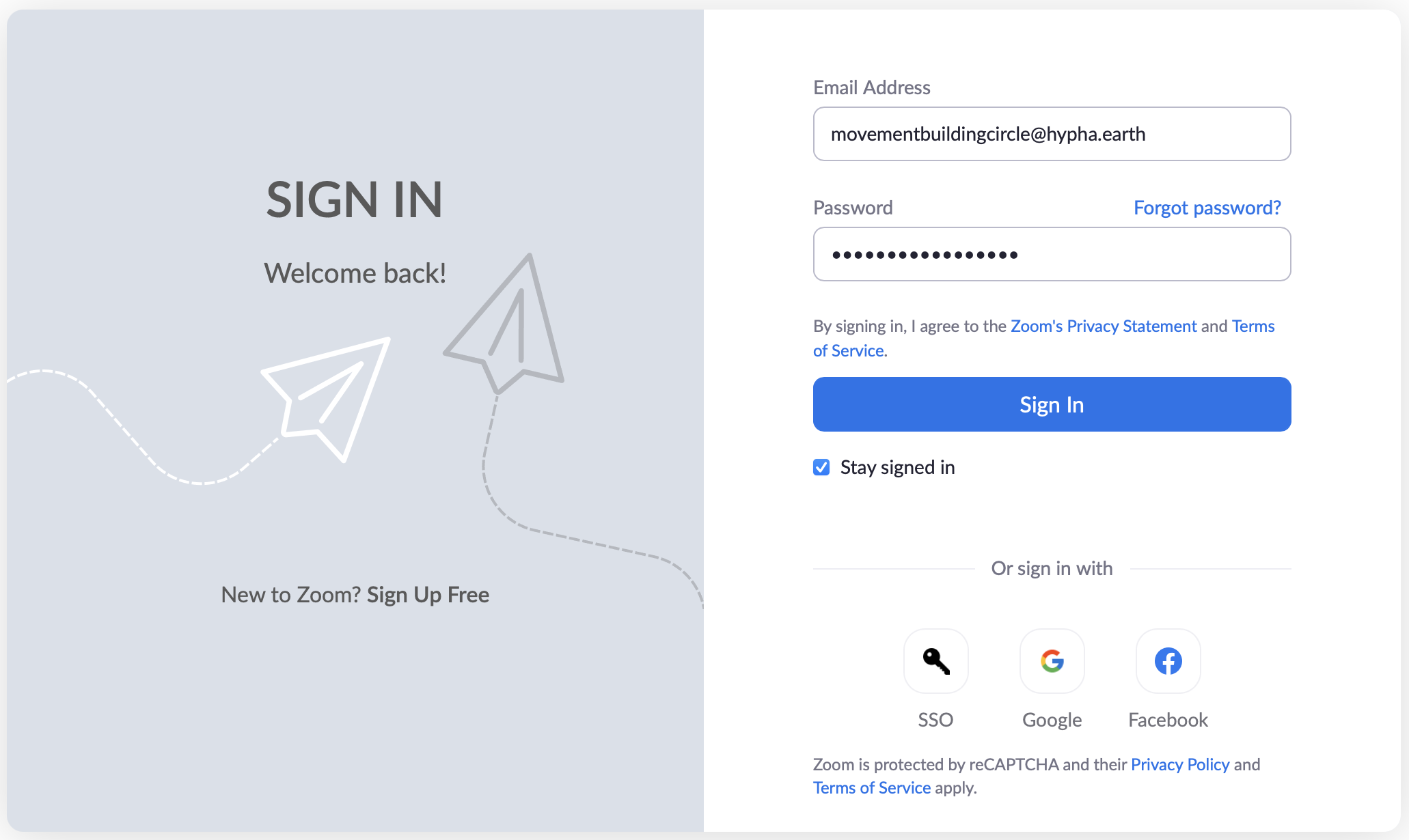
**STEP 1**
1. **Log into [https://zoom.us](https://zoom.us) using [movementbuildingcircle@hypha.earth](mailto:anchorcircle@hypha.earth)**
2. Password and 2FA are within your [https://Locker.hypha.earth](https://Locker.hypha.earth)
3. **Contact: if necessary for password and 2FA**
[](https://guide.hypha.earth/uploads/images/gallery/2021-04/image-1619472622665-27-44.png)
**STEP 2**
1. Add/modify/delete your zoom invites.
2. Ensure you have ongoing invite if it is regularly occurring.
3. Make sure you select the option for repeat.
**STEP 3**
1. Make sure you download and connect the zoom meeting to google calendar . Note: this calendar requires 2FA.
2. Make sure to check your **locker.hypha.earth for your login/password/2FA**
[](https://guide.hypha.earth/uploads/images/gallery/2021-05/image-1621880413413-20-08.png)
**STEP 4**
1. Make sure you are logged into on your browser (locker.hypha.earth for login details)
2. Make sure you select the correct calendar for your circle
3. For this circle it is **HMBC (Hypha Movement Building Circle)**[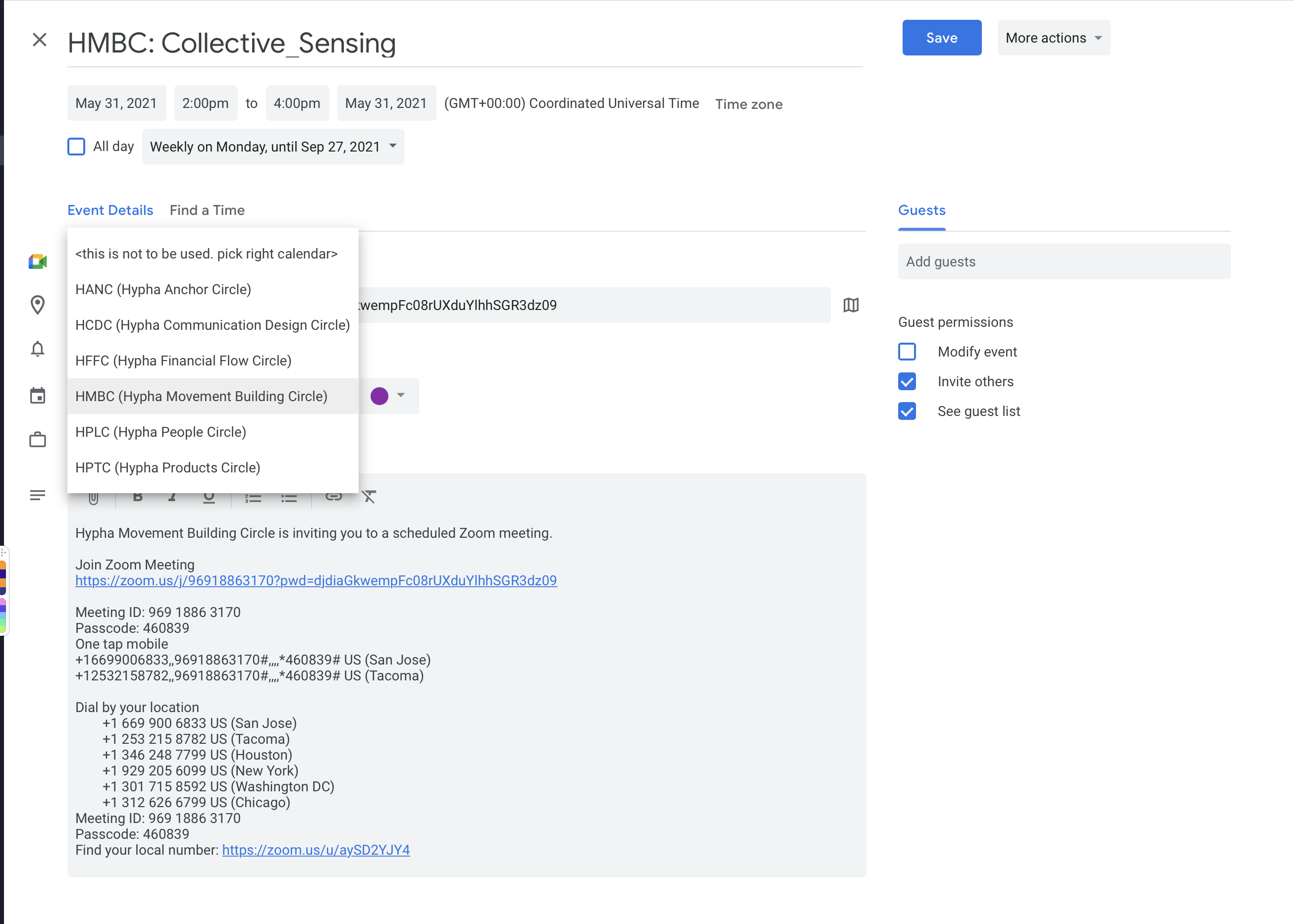](https://guide.hypha.earth/uploads/images/gallery/2021-05/image-1621888309528-31-30.png)
4. Click on **Save**
5. The **[https://ourcalendar.hypha.earth/hypha-movement-building-circle-calendar ](https://ourcalendar.hypha.earth/hypha-movement-building-circle-calendar "https://ourcalendar.hypha.earth/hypha-movement-building-circle-calendar")**will be updated with latest calendar information.
6. The Uber calendar [https://**ourcalendar.hypha.earth**](https://ourcalendar.hypha.earth "https://ourcalendar.hypha.earth") will also be updated with latest calendar information.
# 05.Hypha Financial Flow Circle (HFFC)
**FOR LAMPLIGHTERS**
**TO MODIFY ZOOM CALLS & UPDATE THE (NEW) SHARED CALENDAR**
**Note:**
- The only **google calendar** to be connected to is **calendar@hypha.earth.**
- No simultaneous or overlap of meetings allowed with same Zoom account.
- If using breakout rooms, ensure someone is signed in using Zoom circle account so that they can assign people to breakout rooms.
- Make sure to check your **locker.hypha.earth for your login/password/2FA**
> **Important**
>
> - Full Name: ****
> - username: **financialflowcircle-hypha.earth**
> - email: ****
> - email alias: ****
> - HFFC - [**https://zoom.us/my/hyphafinancialflowcircle**](https://zoom.us/my/hyphafinancialflowcircle)
>
> ---
>
> **ZOOM**
>
> 1. HANC - [https://zoom.us/my/hyphaanchorcircle](https://zoom.us/my/hyphaanchorcircle "https://zoom.us/my/hyphaanchorcircle")
> 2. HPLC - [https://zoom.us/my/hyphapeoplecircle](https://zoom.us/my/hyphapeoplecircle "https://zoom.us/my/hyphapeoplecircle")
> 3. HPTC - [https://zoom.us/my/hyphaproductscircle](https://zoom.us/my/hyphaproducts)
> 4. HMBC - [https://zoom.us/my/hyphamovementbuildingcircle](https://zoom.us/my/hyphamovementbuildingcircle)
> 5. HFFC - [https://zoom.us/my/hyphafinancialflowcircle](https://zoom.us/my/hyphafinancialflowcircle)
> 6. HCDC - [https://zoom.us/my/hyphacommunicationdesigncircle](https://zoom.us/my/hyphafinancialflowcircle)
> 7. SEEDS Samara DHO - [https://zoom.us/my/seedssamara](https://zoom.us/my/seedssamara)
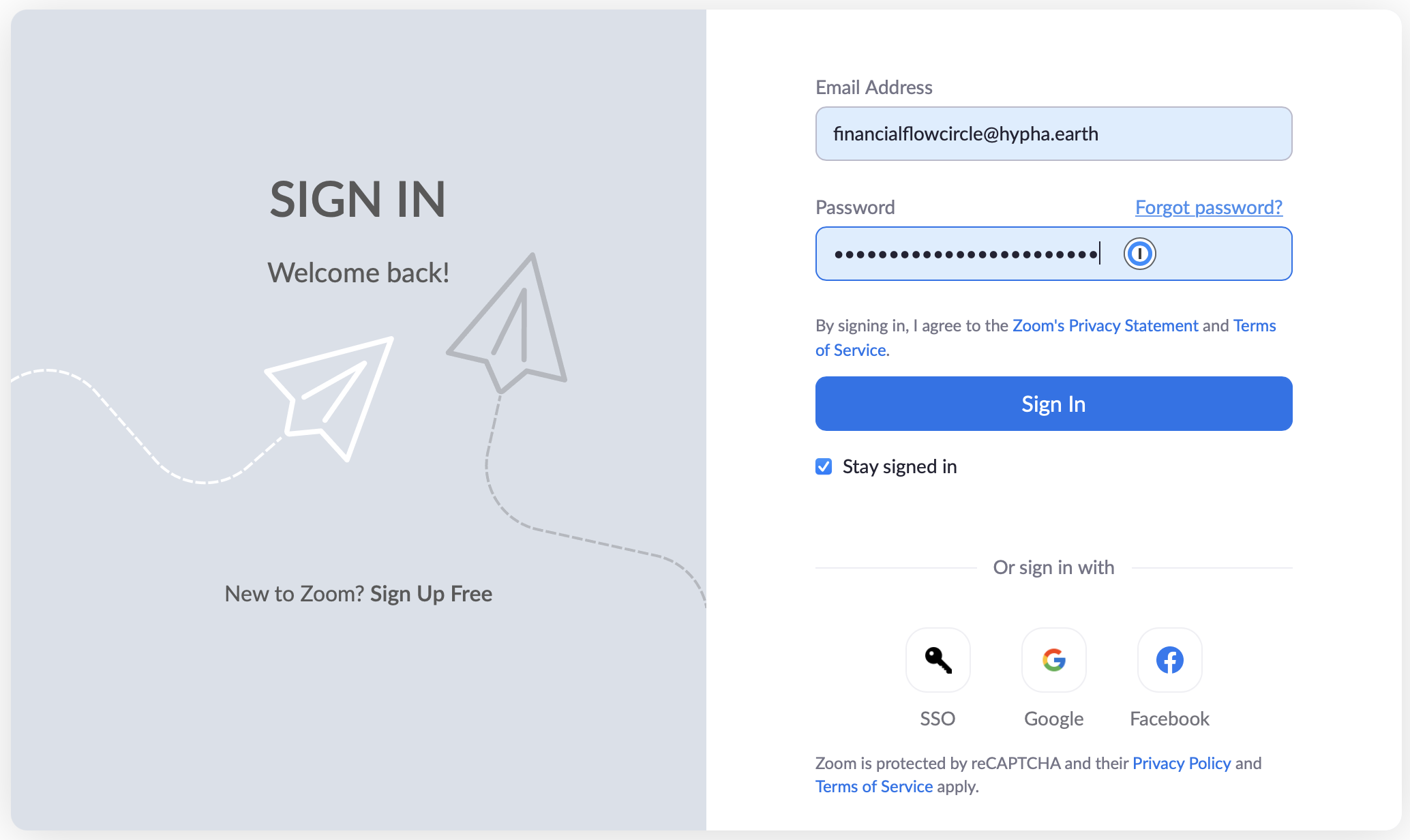
**STEP 1**
1. **Log into [https://zoom.us](https://zoom.us) using [financialflowcircle@hypha.earth](mailto:anchorcircle@hypha.earth)**
2. Password and 2FA are within your [https://Locker.hypha.earth](https://Locker.hypha.earth)
3. **Contact: if necessary for password and 2FA**
[](https://guide.hypha.earth/uploads/images/gallery/2021-04/image-1619472622593-28-11.png)
**STEP 2**
1. Add/modify/delete your zoom invites.
2. Ensure you have ongoing invite if it is regularly occurring.
3. Make sure you select the option for repeat.
**STEP 3**
1. Make sure you download and connect the zoom meeting to google calendar . Note: this calendar requires 2FA.
2. Make sure to check your **locker.hypha.earth for your login/password/2FA**
[](https://guide.hypha.earth/uploads/images/gallery/2021-05/image-1621880413413-20-08.png)
**STEP 4**
1. Make sure you are logged into on your browser (locker.hypha.earth for login details)
2. Make sure you select the correct calendar for your circle
3. For this circle it is **HFFC (Hypha Financial Flow Circle)**[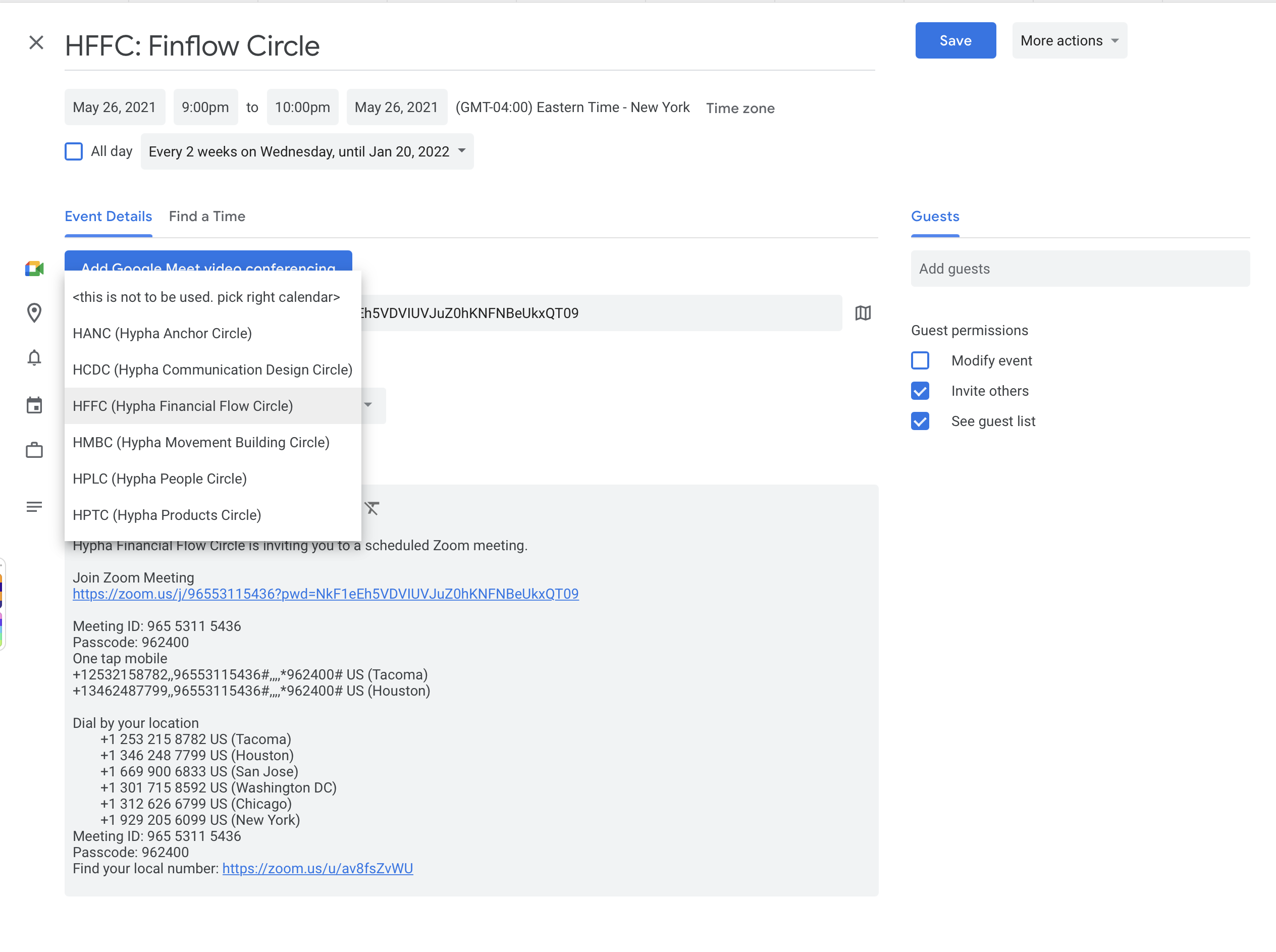](https://guide.hypha.earth/uploads/images/gallery/2021-05/image-1621889790004-19-35.png)
4. Click on **Save**
5. The [**https://ourcalendar.hypha.earth/hypha-financial-flow-circle-calendar**](https://ourcalendar.hypha.earth/hypha-financial-flow-circle-calendar "https://ourcalendar.hypha.earth/hypha-financial-flow-circle-calendar") will be updated with latest calendar information.
6. The Uber calendar [https://**ourcalendar.hypha.earth**](https://ourcalendar.hypha.earth "https://ourcalendar.hypha.earth") will also be updated with latest calendar information.
# 06.Hypha Communication & Design Circle (HCDC)
**FOR LAMPLIGHTERS**
**TO MODIFY ZOOM CALLS & UPDATE THE (NEW) SHARED CALENDAR**
**Note:**
- The only **google calendar** to be connected to is **calendar@hypha.earth.**
- No simultaneous or overlap of meetings allowed with same Zoom account.
- If using breakout rooms, ensure someone is signed in using Zoom circle account so that they can assign people to breakout rooms.
- Make sure to check your **locker.hypha.earth for your login/password/2FA**
> **Important**
>
> - Full Name: ****
> - username: **communicationdesigncircle-hypha.earth**
> - email: ****
> - email alias: ****
> - HCDC - [**https://zoom.us/my/hyphacommunicationdesigncircle**](https://zoom.us/my/hyphafinancialflowcircle)
>
> ---
>
> **ZOOM**
>
> 1. HANC - [https://zoom.us/my/hyphaanchorcircle](https://zoom.us/my/hyphaanchorcircle "https://zoom.us/my/hyphaanchorcircle")
> 2. HPLC - [https://zoom.us/my/hyphapeoplecircle](https://zoom.us/my/hyphapeoplecircle "https://zoom.us/my/hyphapeoplecircle")
> 3. HPTC - [https://zoom.us/my/hyphaproductscircle](https://zoom.us/my/hyphaproducts)
> 4. HMBC - [https://zoom.us/my/hyphamovementbuildingcircle](https://zoom.us/my/hyphamovementbuildingcircle)
> 5. HFFC - [https://zoom.us/my/hyphafinancialflowcircle](https://zoom.us/my/hyphafinancialflowcircle)
> 6. HCDC - [https://zoom.us/my/hyphacommunicationdesigncircle](https://zoom.us/my/hyphafinancialflowcircle)
> 7. SEEDS Samara DHO - [https://zoom.us/my/seedssamara](https://zoom.us/my/seedssamara)
**STEP 1**
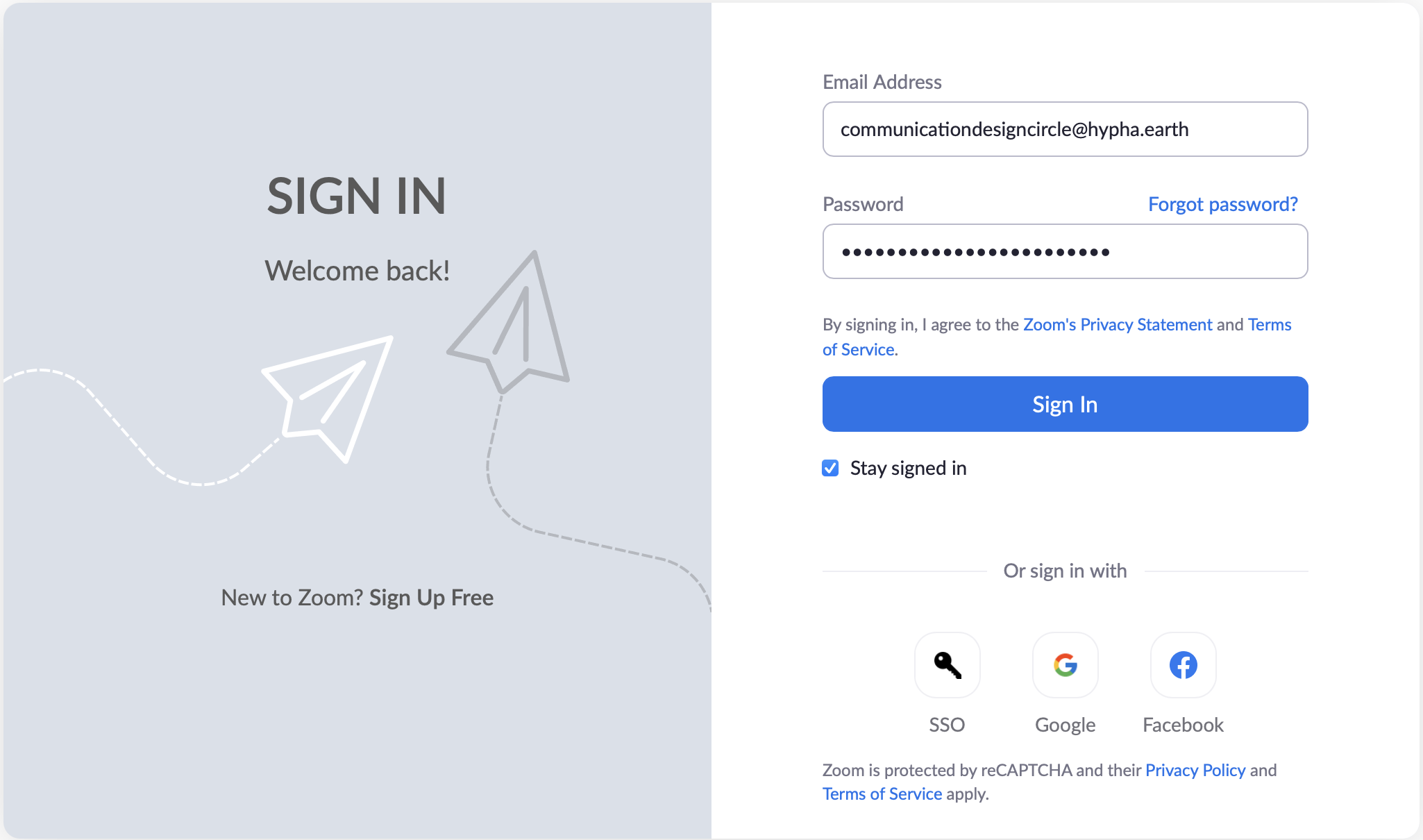
1. **Log into [https://zoom.us](https://zoom.us) using **
2. Password and 2FA are within your [https://Locker.hypha.earth](https://Locker.hypha.earth)
3. **Contact: if necessary for password and 2FA**
[](https://guide.hypha.earth/uploads/images/gallery/2021-05/image-1620410856446-06-56.png)
**STEP 2**
1. Add/modify/delete your zoom invites.
2. Ensure you have ongoing invite if it is regularly occurring.
3. Make sure you select the option for repeat.
**STEP 3**
1. Make sure you download and connect the zoom meeting to google calendar . Note: this calendar requires 2FA.
2. Make sure to check your **locker.hypha.earth for your login/password/2FA**
[](https://guide.hypha.earth/uploads/images/gallery/2021-05/image-1621880413413-20-08.png)
**STEP 4**
1. Make sure you are logged into on your browser (locker.hypha.earth for login details)
2. Make sure you select the correct calendar for your circle
3. For this circle it is **HCDC (Hypha Communication Design Circle)**[](https://guide.hypha.earth/uploads/images/gallery/2021-05/image-1621888309528-31-30.png)
4. Click on **Save**
5. The **[https://ourcalendar.hypha.earth/hypha-communications-design-circle-calendar ](https://ourcalendar.hypha.earth/hypha-communications-design-circle-calendar "https://ourcalendar.hypha.earth/hypha-communications-design-circle-calendar")**will be updated with latest calendar information.
6. The Uber calendar [**https://ourcalendar.hypha.earth**](https://ourcalendar.hypha.earth "https://ourcalendar.hypha.earth") will also be updated with latest calendar information.
# 99. Samara DHO
**FOR LAMPLIGHTERS**
**TO MODIFY ZOOM CALLS & UPDATE THE (NEW) SHARED CALENDAR**
**Note:**
- The only **google calendar** to be connected to is **calendar@hypha.earth.**
- No simultaneous or overlap of meetings allowed with same Zoom account.
- If using breakout rooms, ensure someone is signed in using Zoom circle account so that they can assign people to breakout rooms.
- Make sure to check your **locker.hypha.earth for your login/password/2FA**
> **Important**
>
> - Full Name: ****
> - username: **seedssamara-hypha.earth**
> - email: ****
> - email alias: **[samara@hypha.earth](mailto:samara@hypha.earth "samara@hypha.earth")**
> - email alias: **[samaradho@hypha.earth](mailto:samaradho@hypha.earth "samaradho@hypha.earth")**
> - SEEDS Samara DHO - **[https://zoom.us/my/seedssamara](https://zoom.us/my/seedssamara)**
>
> ---
>
> **ZOOM**
>
> 1. HANC - [https://zoom.us/my/hyphaanchorcircle](https://zoom.us/my/hyphaanchorcircle "https://zoom.us/my/hyphaanchorcircle")
> 2. HPLC - [https://zoom.us/my/hyphapeoplecircle](https://zoom.us/my/hyphapeoplecircle "https://zoom.us/my/hyphapeoplecircle")
> 3. HPTC - [https://zoom.us/my/hyphaproductscircle](https://zoom.us/my/hyphaproducts)
> 4. HMBC - [https://zoom.us/my/hyphamovementbuildingcircle](https://zoom.us/my/hyphamovementbuildingcircle)
> 5. HFFC - [https://zoom.us/my/hyphafinancialflowcircle](https://zoom.us/my/hyphafinancialflowcircle)
> 6. HCDC - [https://zoom.us/my/hyphacommunicationdesigncircle](https://zoom.us/my/hyphafinancialflowcircle)
> 7. SEEDS Samara DHO - [https://zoom.us/my/seedssamara](https://zoom.us/my/seedssamara)
**FOR LAMPLIGHTERS**
**TO MODIFY ZOOM CALLS & UPDATE THE (NEW) SHARED CALENDAR**
**STEP 1**
1. **Log into [https://zoom.us](https://zoom.us) using **
2. Password and 2FA are within your [https://Locker.hypha.earth](https://Locker.hypha.earth)
3. **Contact: if necessary for password and 2FA**[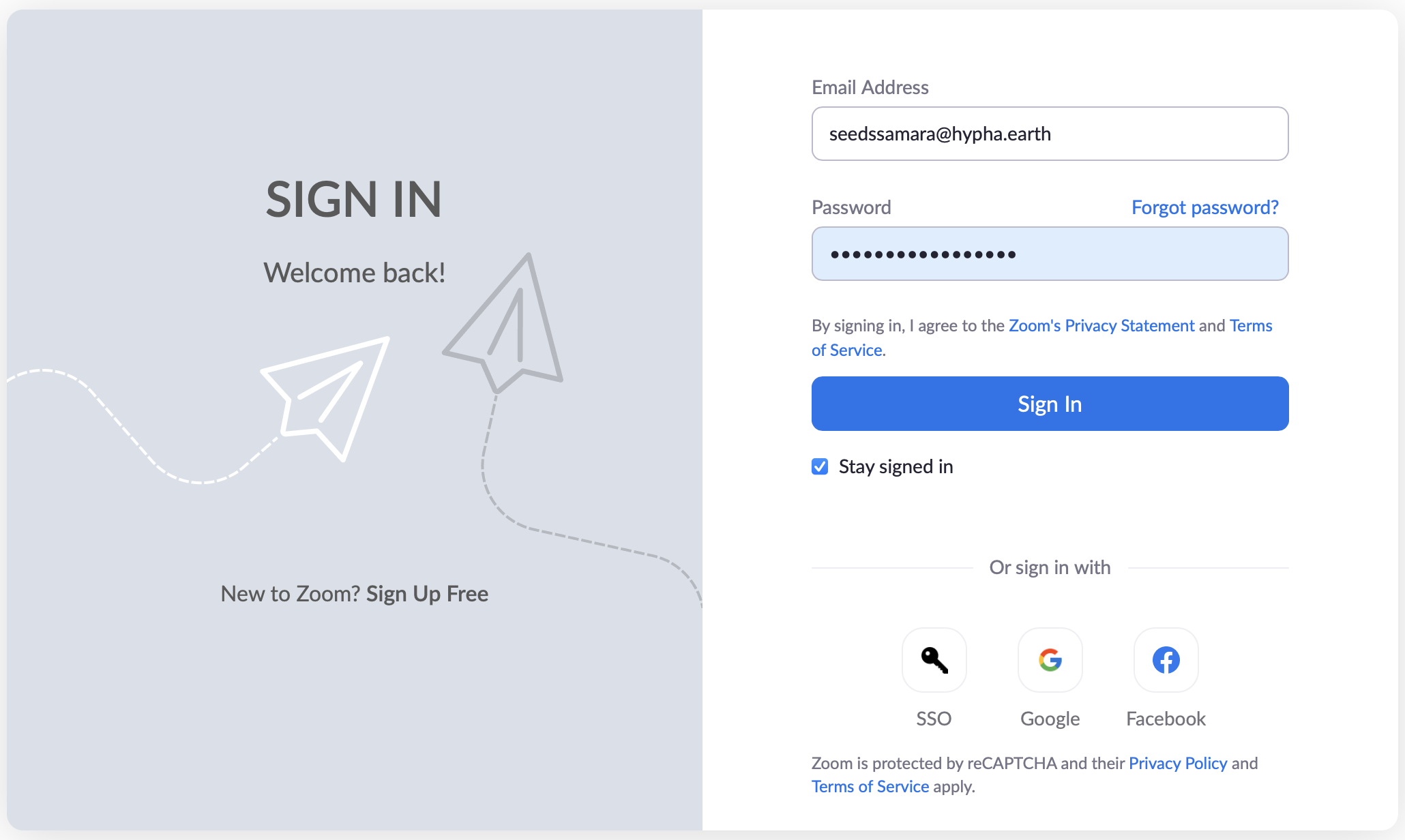](https://guide.hypha.earth/uploads/images/gallery/2021-04/image-1619474202375-56-36.png)
**STEP 2**
1. Add/modify/delete your zoom invites.
2. Ensure you have ongoing invite if it is regularly occurring.
3. Make sure you select the option for repeat.
**STEP 3**
1. Make sure you download and connect the zoom meeting to google calendar . Note: this calendar requires 2FA.
2. Make sure to check your **locker.hypha.earth for your login/password/2FA**
[](https://guide.hypha.earth/uploads/images/gallery/2021-05/image-1621880413413-20-08.png)
**STEP 4**
1. Make sure you are logged into on your browser (locker.hypha.earth for login details)
2. Make sure you select the correct calendar for your circle
3. For this circle it is **SEEDSSamara@hypha.earth****<TO BE UPDATED>**
4. Click on **Save**
5. The **[https://ourcalendar.hypha.earth/](https://ourcalendar.hypha.earth/hypha-movement-building-circle/ "https://ourcalendar.hypha.earth/hypha-movement-building-circle/")** will be updated with latest calendar information.
6. The Uber calendar [**https://ourcalendar.hypha.earth**](https://ourcalendar.hypha.earth "https://ourcalendar.hypha.earth") will also be updated with latest calendar information.