# 03.Hypha Products Circle (HPTC)
**FOR LAMPLIGHTERS**
**TO MODIFY ZOOM CALLS & UPDATE THE (NEW) SHARED CALENDAR**
**Note:**
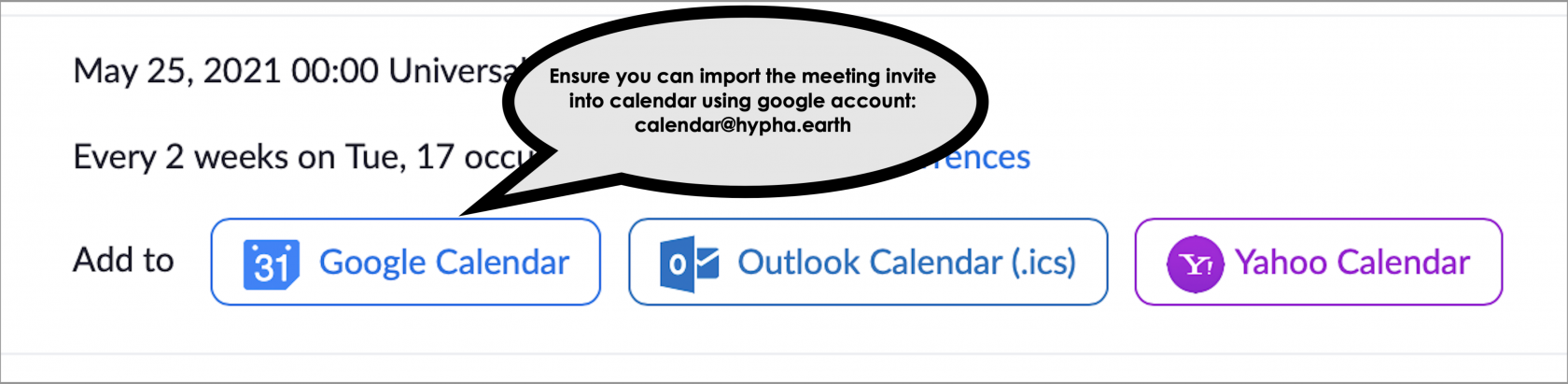
- The only **google calendar** to be connected to is **calendar@hypha.earth.**
- No simultaneous or overlap of meetings allowed with same Zoom account.
- If using breakout rooms, ensure someone is signed in using Zoom circle account so that they can assign people to breakout rooms.
> **Important**
>
> - Full Name: ****
> - username: **productscircle-hypha.earth**
> - email: ****
> - email alias: [**hptc@hypha.earth**](mailto:hptc@hypha.earth)
> - HPTC - [**https://zoom.us/my/hyphaproductscircle**](https://zoom.us/my/hyphaproducts)
>
> ---
>
> **ZOOM**
>
> 1. HANC - [https://zoom.us/my/hyphaanchorcircle](https://zoom.us/my/hyphaanchorcircle "https://zoom.us/my/hyphaanchorcircle")
> 2. HPLC - [https://zoom.us/my/hyphapeoplecircle](https://zoom.us/my/hyphapeoplecircle "https://zoom.us/my/hyphapeoplecircle")
> 3. HPTC - [https://zoom.us/my/hyphaproductscircle](https://zoom.us/my/hyphaproducts)
> 4. HMBC - [https://zoom.us/my/hyphamovementbuildingcircle](https://zoom.us/my/hyphamovementbuildingcircle)
> 5. HFFC - [https://zoom.us/my/hyphafinancialflowcircle](https://zoom.us/my/hyphafinancialflowcircle)
> 6. HCDC - [https://zoom.us/my/hyphacommunicationdesigncircle](https://zoom.us/my/hyphafinancialflowcircle)
> 7. SEEDS Samara DHO - [https://zoom.us/my/seedssamara](https://zoom.us/my/seedssamara)
**STEP 1:**
1. **Log into [https://zoom.us](https://zoom.us) using **
2. Password and 2FA are within your **[https://Locker.hypha.earth](https://Locker.hypha.earth)**
3. **Contact: if necessary for password and 2FA**[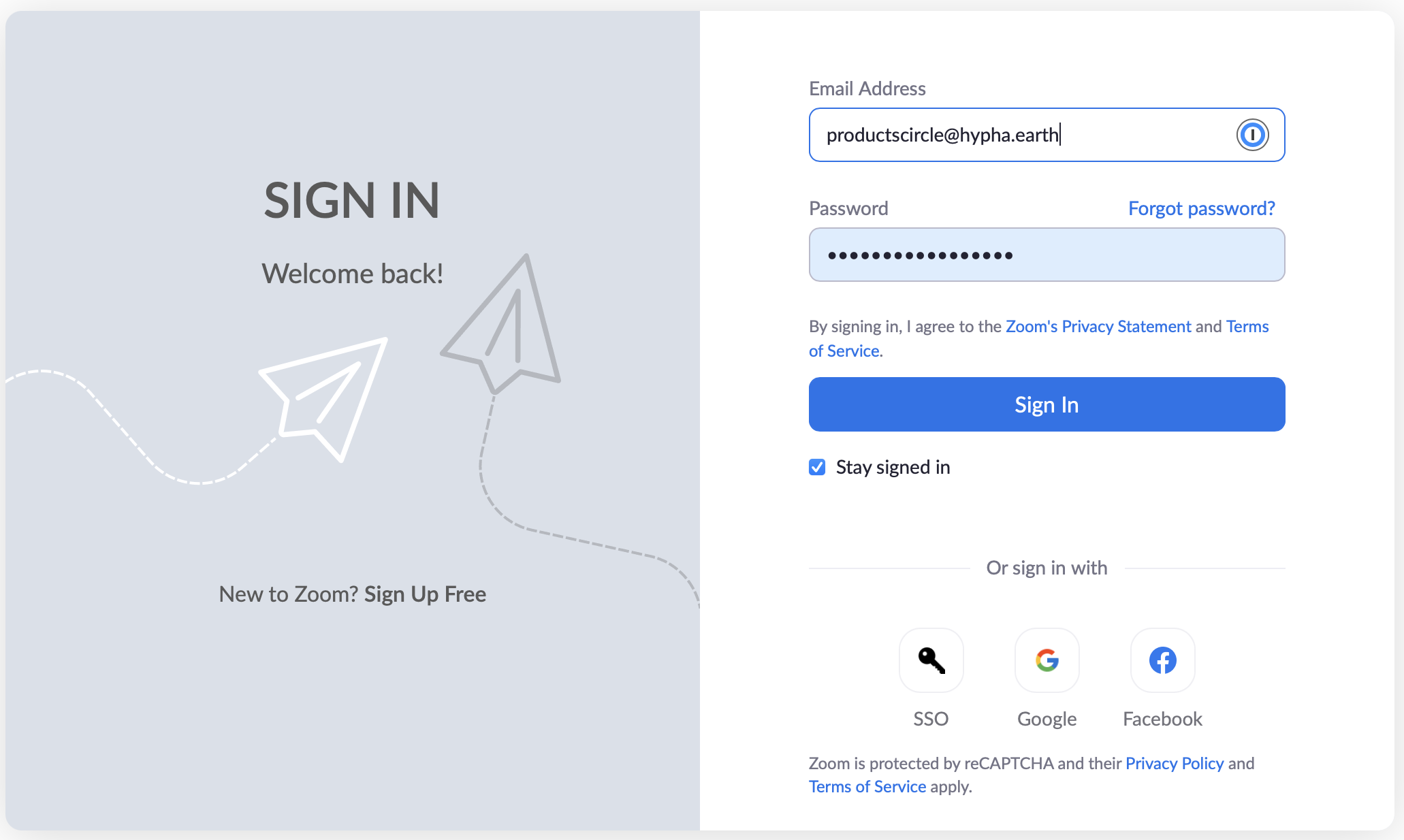](https://guide.hypha.earth/uploads/images/gallery/2021-04/image-1619474117035-29-07.png)
**STEP 2**
1. Add/modify/delete your zoom invites.
2. Ensure you have ongoing invite if it is regularly occurring.
3. Make sure you select the option for repeat.
**STEP 3**
1. Make sure you download and connect the zoom meeting to google calendar . Note: this calendar requires 2FA.
[](https://guide.hypha.earth/uploads/images/gallery/2021-05/image-1621880413413-20-08.png)
**STEP 4**
1. Make sure you are logged into on your browser (locker.hypha.earth for login details)
2. Make sure you select the correct calendar for your circle
3. For this circle it is **HPTC (Hypha Products Circle)**[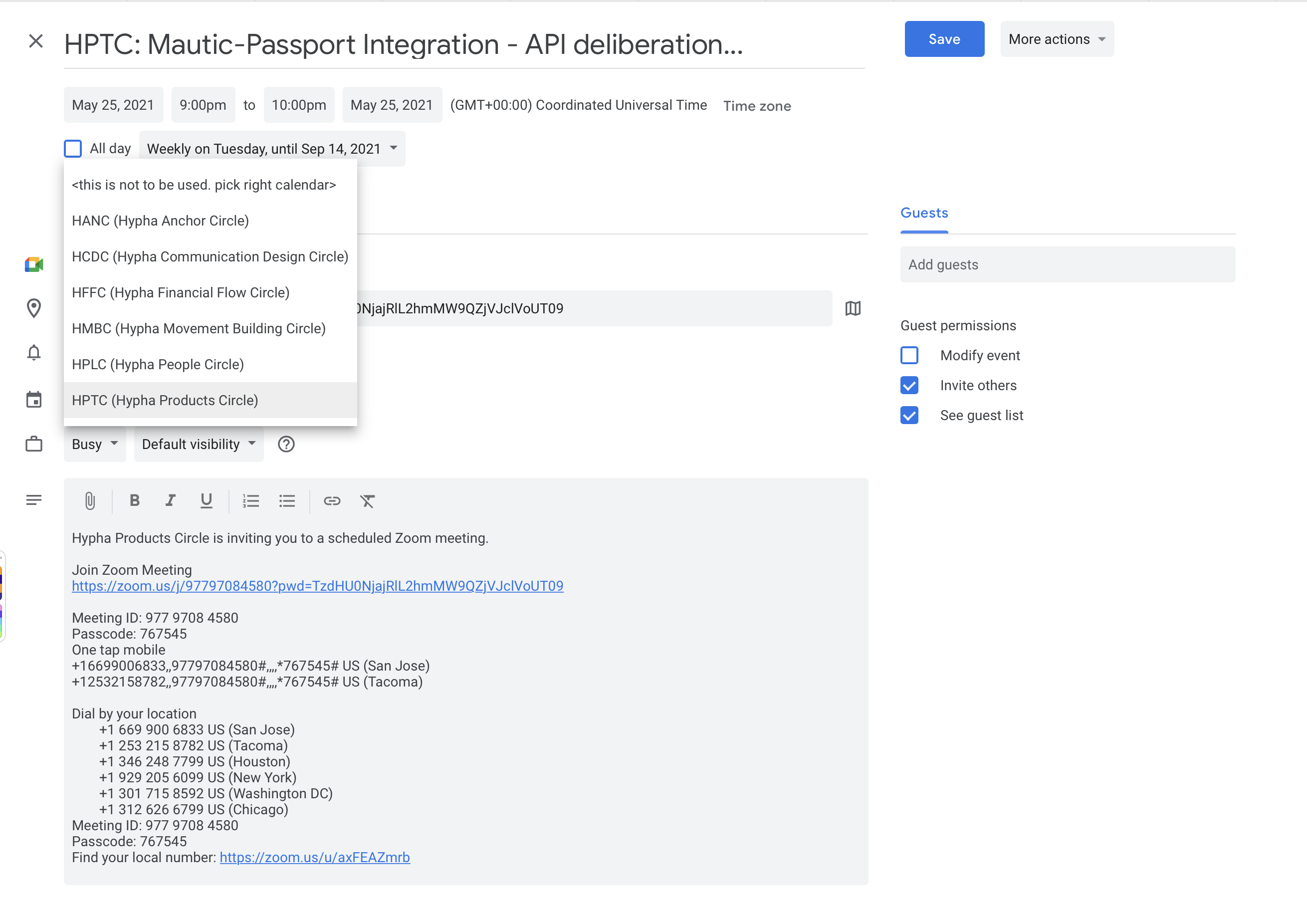](https://guide.hypha.earth/uploads/images/gallery/2021-05/image-1621888055960-19-18.png)
4. Click on **Save**
5. The **[https://ourcalendar.hypha.earth/hypha-products-circle-calendar/](https://ourcalendar.hypha.earth/hypha-products-circle-calendar/ "https://ourcalendar.hypha.earth/hypha-products-circle-calendar/")** will be updated with latest calendar information.
6. The Uber calendar [**https://ourcalendar.hypha.earth**](https://ourcalendar.hypha.earth "https://ourcalendar.hypha.earth") will also be updated with latest calendar information.